Open Badge 3.0 explained, without the specification voice
Read an Open Badges 3.0 credential, distinguish JSON from JWT and baked images, and understand what verification can and cannot establish.
Verify Open Badge · Jul 24, 2026 · 7 min read
An Open Badges 3.0 credential is a claim about an achievement, attached to a recipient and an issuer, in a format another organisation can inspect and verify. The badge artwork helps someone recognise it. The signed data is what lets them check it.
The practical questions are: what exactly was achieved, who says so, which person received it, and what can still be checked when the issuer's issuing platform is gone? This guide uses a single badge as a working example rather than assuming that a green tick answers all four.
Start with the claim, not the picture
Imagine a badge called Incident Review Lead. Its issuer claims that the recipient led two post-incident reviews, produced agreed follow-up actions, and met a published rubric. Those details belong in the credential. A logo on its own cannot tell an outside manager whether this is evidence of independent practice or attendance at a workshop.
Open Badges 3.0 uses the W3C Verifiable Credentials data model and the 1EdTech Open Badges 3.0 specification. An issued OpenBadgeCredential associates an issuer with a credentialSubject; within that subject, the achievement describes the thing earned. Inspect the fields rather than relying on the visual badge name.
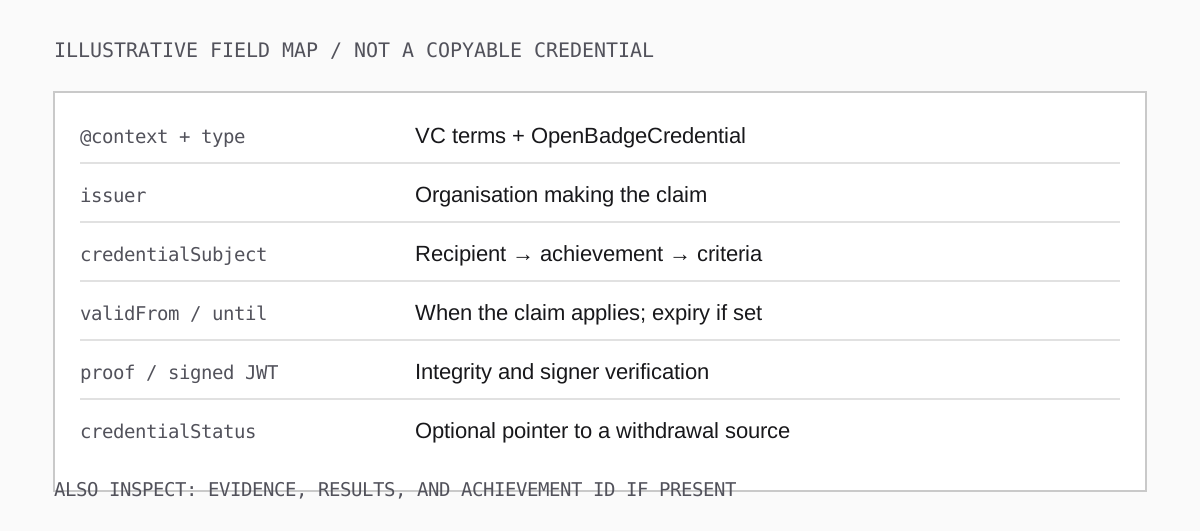
Look for an achievement ID, a plain-language description and criteria. Evidence and results can add detail, but may be absent or access-controlled for good reason. If the criteria say only "completed the programme", you cannot infer the learner passed an assessment. If the credential is meant to demonstrate a skill, ask what work was assessed and against which standard.
The @context identifies the vocabularies used to interpret those fields. It is part of the credential's data, not decorative JSON. Reordering or replacing contexts can make a credential invalid. Never "fix" a received credential in a text editor and then expect its signature to verify.
A five-minute reading exercise
If you have an original JSON export, open a copy as text. Locate issuer, then credentialSubject, then the achievement's name and criteria. Compare the issuer identifier to the issuing organisation's own website or a contact you already trust. Do not accept the website link inside the badge as independent confirmation: anyone who controls a signing key can put their own URL in a credential.
Next, look for validFrom, an expiry field if supplied, and credentialStatus. Absence of an expiry date does not make a badge fraudulent; an achievement can be permanent. Absence of a status entry means you cannot perform a live revocation check on that credential. Finally, look for evidence or result where the claim calls for an assessment. An evidence URL may require permission or may later disappear, so record what you were actually able to review rather than assuming the link proves the work.
This exercise makes the result intelligible. It is not a replacement for cryptographic verification: visually inspecting JSON cannot tell you whether the proof is valid.
One credential, several ways to receive it
An embedded Data Integrity proof can travel with a JSON document. A signed VC-JWT travels as a compact token; you decode its claims to read them, but decoding is not verification. Open Badges 3.0 also defines baked PNG and SVG badges: image files that carry the credential payload. A screenshot, exported thumbnail, or image recompressed by a social network may keep the artwork and lose the credential.
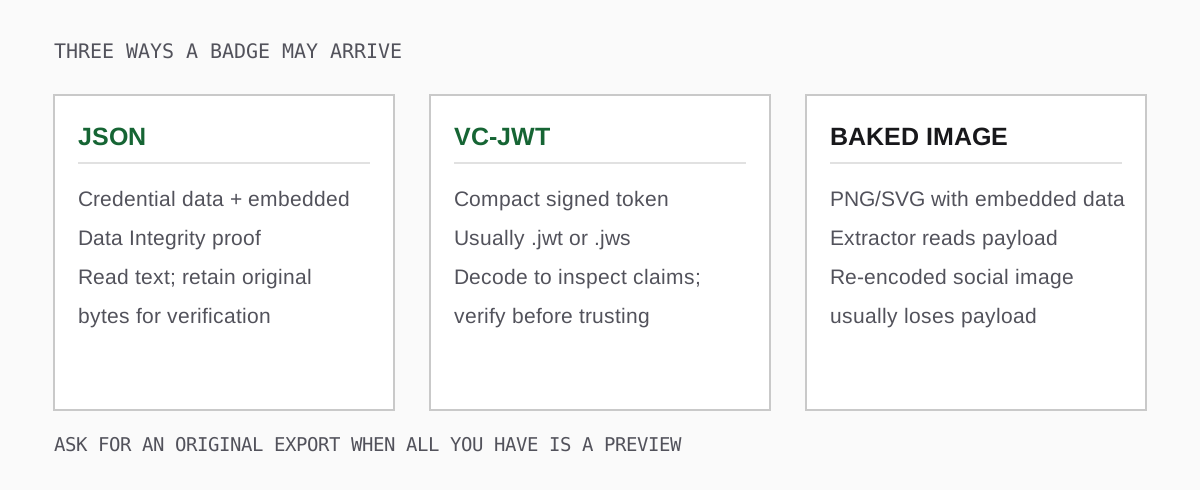
When someone sends only a public profile URL, check whether it links to the actual credential or just an HTML display page. Ask for the original issuer download when in doubt. Depending on the proof method, verification may need public keys, JSON-LD contexts, and, if configured, a status source. Holding a signed file reduces dependence on the issuing dashboard; it does not guarantee a fully offline check.
This matters during a migration. Suppose an issuer stops using a platform but keeps its own domain. Recipients still have their files, yet their badges can become difficult to verify if the platform also hosted the public key or status list. Before switching providers, issue a test credential, identify the exact URLs a fresh verifier follows and write down who will maintain each one after the old account closes. Retest a badge signed with an older key: the current key cannot silently replace the key named in that older proof.
What changed from 2.x
An Open Badges 2.x assertion points to a BadgeClass and issuer Profile. It may be hosted, in which case the verifier retrieves the issuer's live assertion, or signed, in which case it carries a JWS. Signed 2.x badges existed; it would be wrong to describe every 2.x badge as an unsigned webpage. Open Badges 3.0 models the achievement as a verifiable credential and specifies its proof and verification routes within that model.
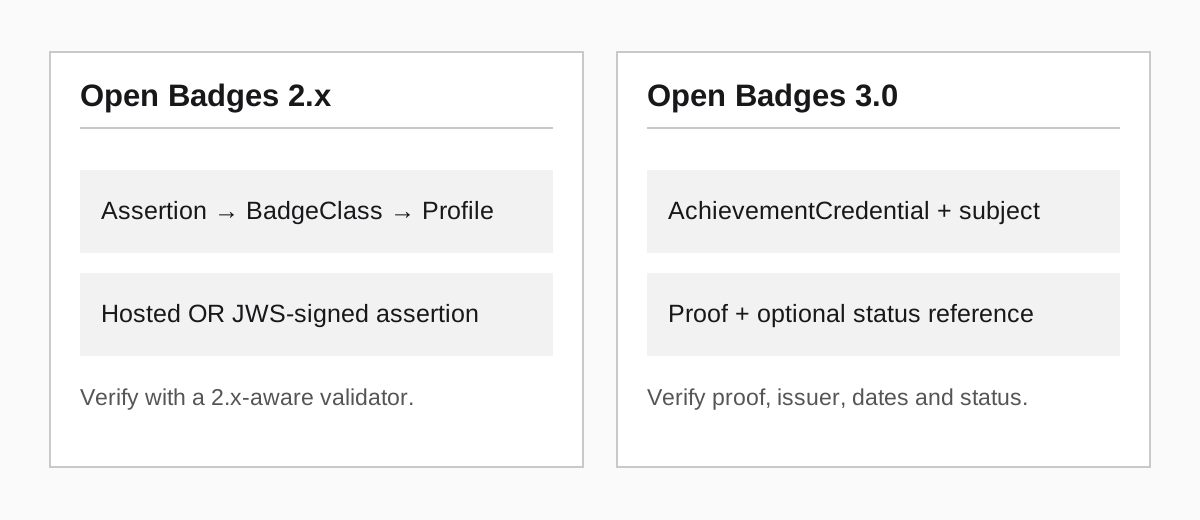
That change does not upgrade badges already issued as 2.x. Keep the original files and use a checker that supports their format. A failed attempt to run a 2.x assertion through a 3.0-only validator is a compatibility problem, not evidence of fraud. The format history explains the transition in more detail.
There are also two different version labels in this conversation. "Open Badges 3.0" names the badge standard; "VC 1.1" or "VC 2.0" describes the underlying verifiable credential profile. Check both the credential's profile and the proof method against your verifier's actual support. Do not decide from a filename or a vendor marketing page.
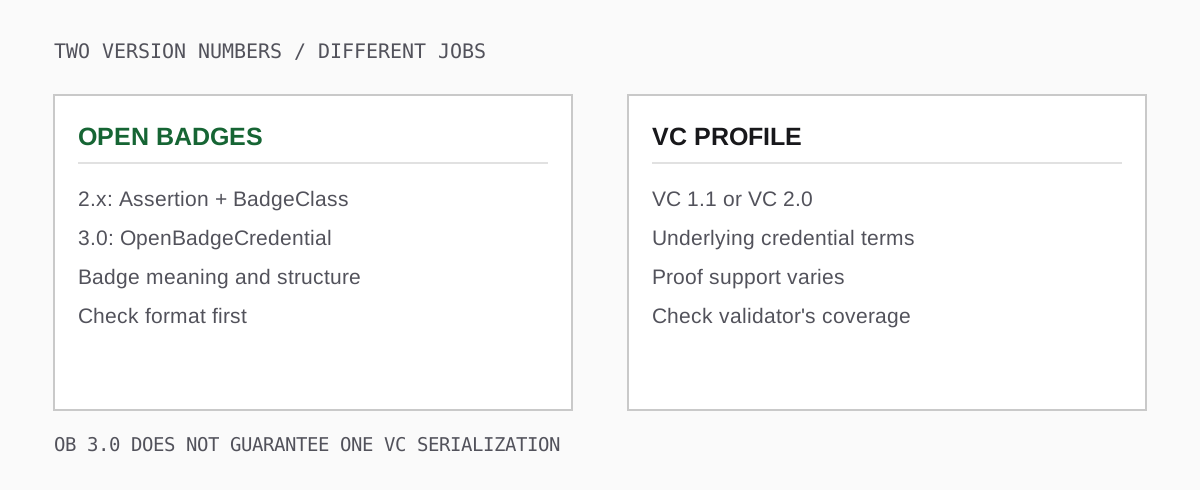
Work through a verification result
Use the original signed export in an independent validator. This site's walkthrough shows the file and URL inputs. The example result below is useful because it separates checks: a passing proof does not automatically mean that extraction or recipient matching was performed.
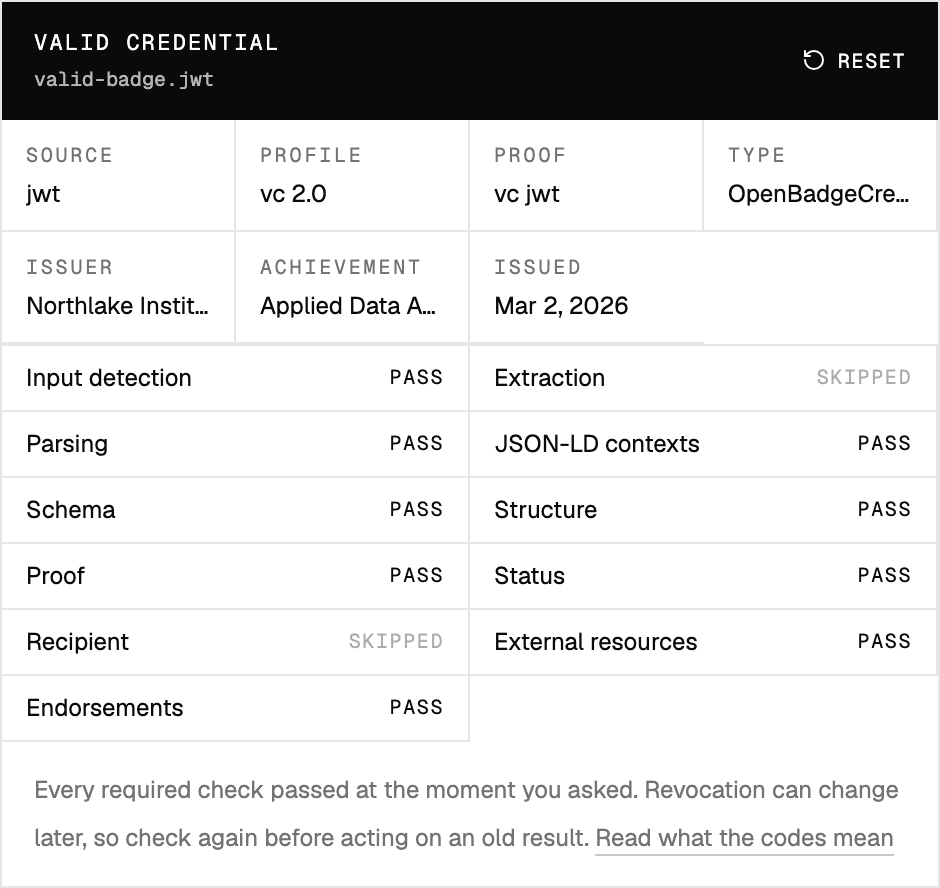
Read what the verifier actually checked
Read the report in layers:
- Format and structure: was a supported credential extracted, and did it meet the relevant schema? A screenshot with no embedded payload cannot pass this step.
- Proof: did the signed data verify using an available verification method? This connects the claim to a key, not to the real-world reputation of its owner.
- Lifetime and status: do any applicable validity dates allow current use? If a status entry is configured, was its source reachable and did it report clear, suspended or revoked? If no status mechanism exists, do not report "not revoked" as a performed check.
- Issuer, holder and claim: independently confirm that the key belongs to the organisation you intended to trust; match the subject to the presenter; then read the criteria and any evidence.
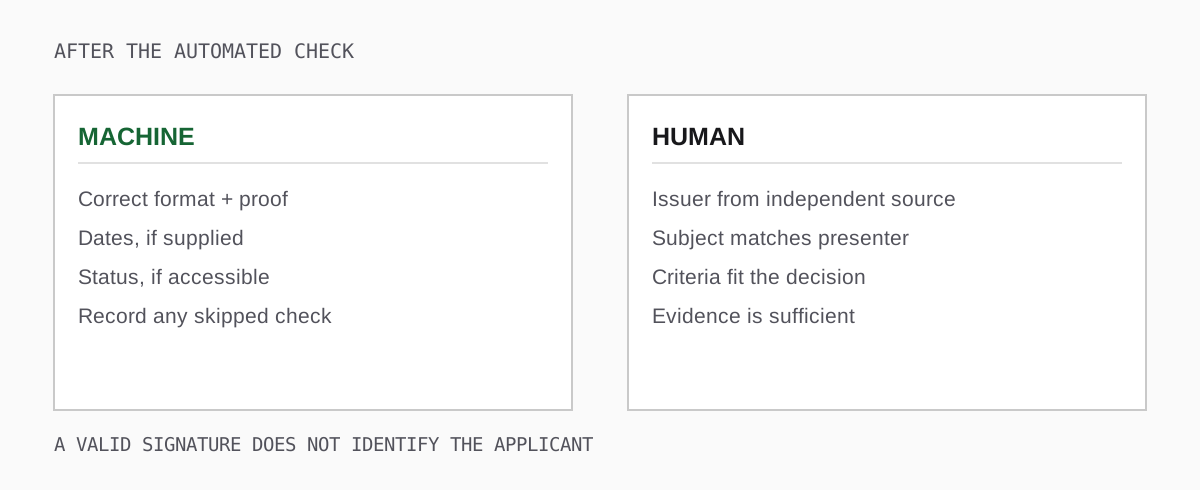
A badge can pass the proof check even when the status list is unavailable. Conversely, a credential may be authentic but expired or revoked. Record which checks ran and when: status can change tomorrow. A green UI verdict alone is too small a record for a hiring or eligibility decision.
Decide whether the badge supports your decision
For example, an applicant submits an Incident Review Lead badge. Your verifier reports a valid proof and an unexpired credential, but the recipient field is an opaque identifier. You still need an issuer-supported way to link that identifier to the applicant. Then read the rubric: if it required two supervised reviews, do not treat the badge as authorisation to lead a high-risk review alone. The signed claim can be genuine while your proposed use of it is too broad.
For a consequential decision, keep a minimal internal record: credential reference or securely held original, check time, proof and status result, how issuer and subject were checked, and the decision made. Restrict access to that record; there is rarely a reason to publish the applicant's full credential or evidence on the open web.
When the check fails, ask a narrower question
A missing payload, an unsupported proof and a failed signature have different remedies. A missing payload calls for an original export. An unsupported proof calls for a compatible verifier or a supported re-export from the issuer. A failed signature on the original file means you should stop treating that file as verified and ask the issuer to investigate. Do not copy its JSON into a new document and try to repair it by hand.
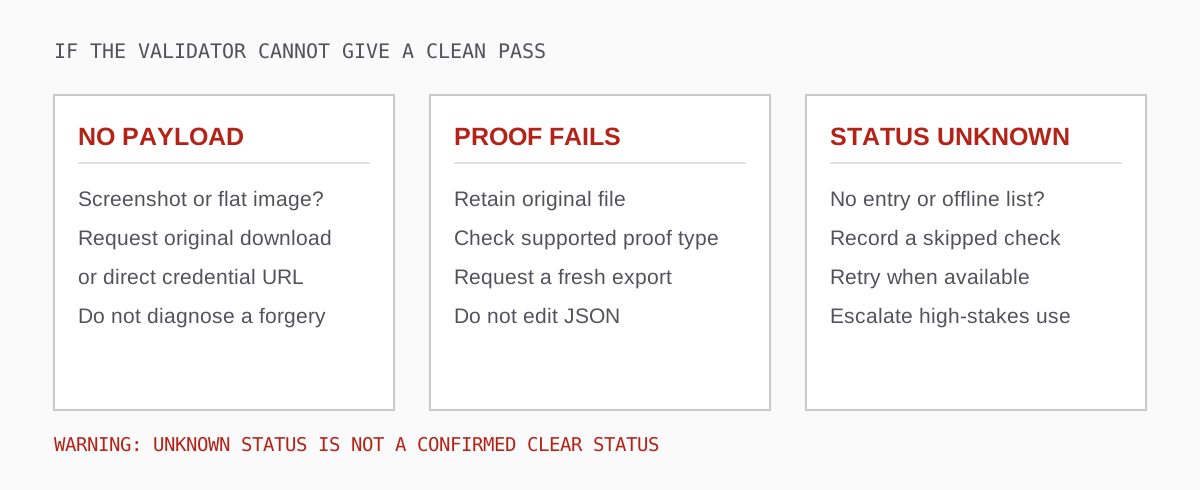
If the proof verifies but the issuer's key or profile URL is no longer reachable, the verifier may be unable to finish. That is a maintenance problem the issuer should resolve; it is not the same finding as a modified credential. For a high-stakes use, retain the original file, error and timestamp, and request a direct issuer confirmation or a fresh verifiable export.
If you issue 3.0 badges, test one before launch
Export an actual test badge through the recipient's download flow. Have someone outside the issuing team validate it, find the criteria and explain in one sentence what the learner did. Test a revoked sample if you offer revocation. Check that the issuer ID and verification-method URL will remain under your control if you change vendors. A platform demo that verifies only inside its own dashboard cannot answer those questions.
For the exact UI steps and the meaning of PASS, FAIL and SKIPPED, use the validator walkthrough. For a migration decision, see making recognition portable and the 1EdTech certified product directory.